CSTV · Blog
Why is my CS2 recording blurry? Check capture and upload quality
Find where a CS2 video loses detail. Compare the original export with the uploaded version, then check resolution, frame rate, scaling, and compression.
Updated · CSTV
Find the stage where detail is lost
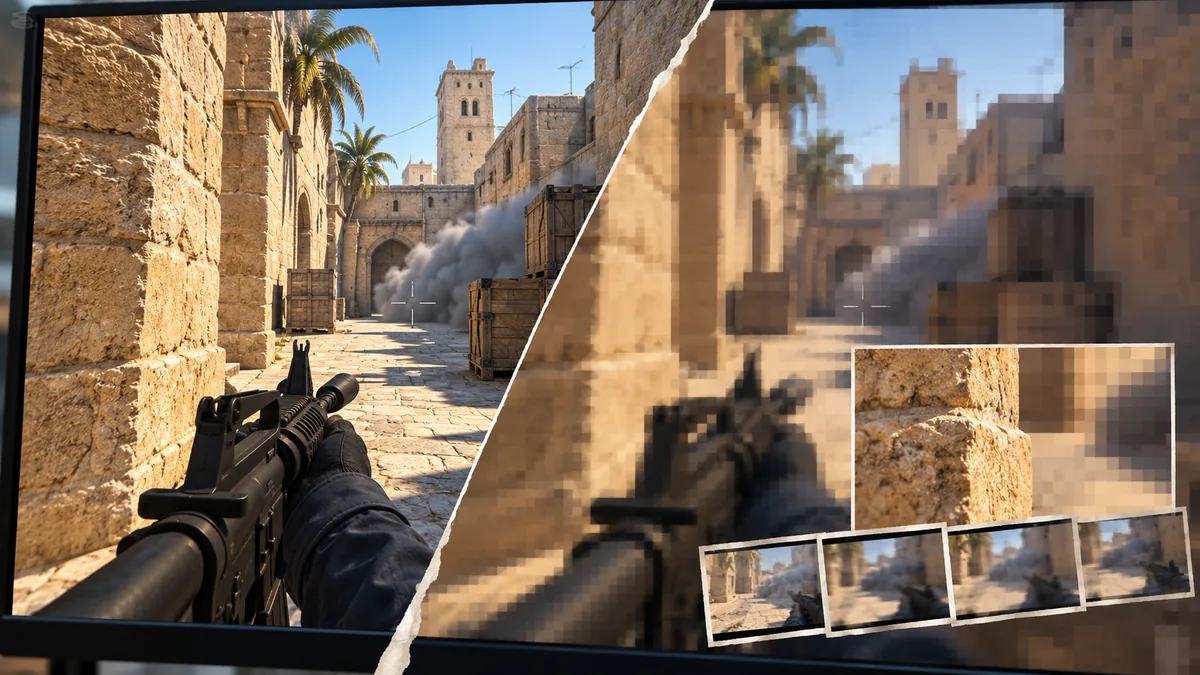
Keep the original export and choose a short section with movement, smoke, or detailed textures. Compare local playback at its native size with the platform version after processing finishes.
If both look poor, start with the source and capture. If only the upload looks poor, check the platform's current requirements. Use the original instead of repeatedly downloading and uploading it.
Compare the same real clip at two compression levels
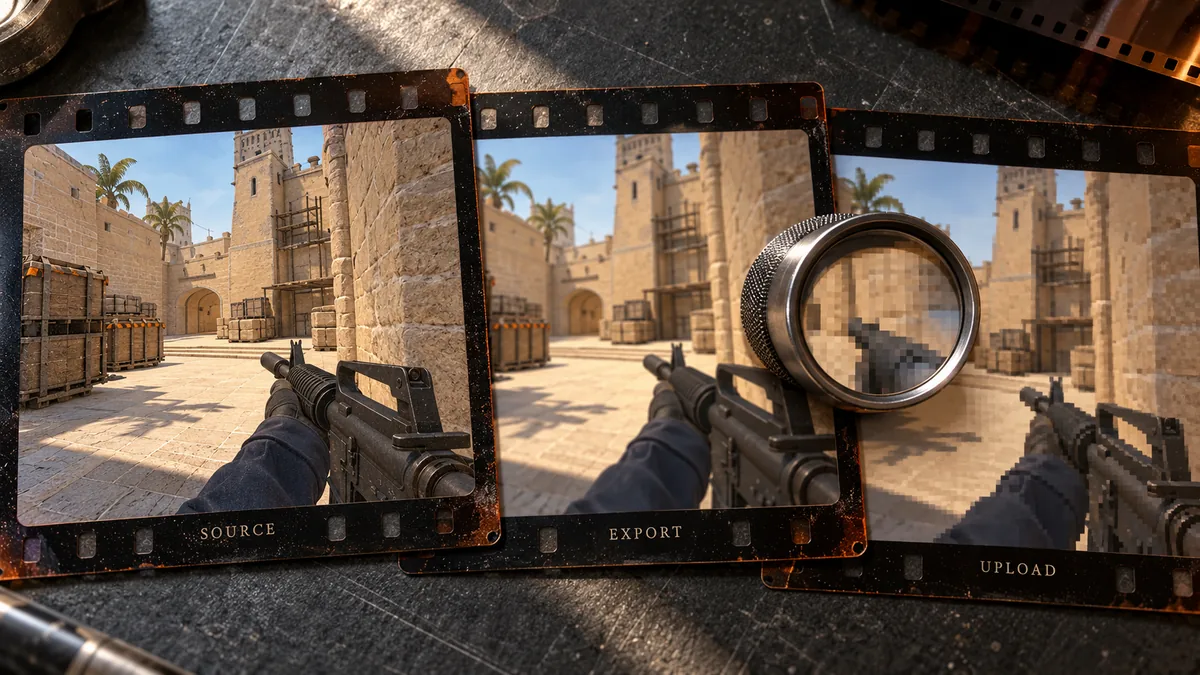
The two clips below come from the same existing CSTV gameplay sample. Both are 960 × 540 at 30 fps and 3.57 seconds long, re-encoded with x264 medium. Only CRF changes: 18 for lighter compression and 38 for heavier compression. Compare wall textures and edges at the same playback time.
This is a local re-encoding comparison using an already-encoded source. It is not a comparison of CSTV plans, a lossless master, or a Bilibili upload test. The higher-quality re-encode cannot add detail missing from the source.
Resolution: detail in a single frame
More pixels can preserve more detail. Enlarging an already blurry source does not restore wall textures, player edges, or crosshair detail. Compare the source picture with the original local export first.
Frame rate: motion sampled over time
Higher frame rates use more capture resources and storage. They do not restore detail missing from each frame. Check the options on the pricing page, validate a short clip, and choose settings for your PC and intended use.
| Variant | Resolution / fps | File size | SSIM vs decoded source |
|---|---|---|---|
| Lighter compression · CRF 18 | 960×540 / 30 | 1,477,496 bytes | 0.990153 |
| Heavier compression · CRF 38 | 960×540 / 30 | 185,734 bytes | 0.889129 |
Check scaling, framing, and sound
The game's aspect ratio, recording size, and publishing format can differ. Check for stretched crosshairs, distorted players, cropped HUD elements, and lost subjects when converting landscape footage to portrait.
Watch movement and fights, check sound sync, and play the beginning and ending too. A video is not verified just because its playback timer advances.
Change one setting at a time
Use the same short source clip to compare resolution, frame rate, and available quality settings. Record the file size and playback result instead of changing the game, driver, recorder, and encoder all at once.
If the video is black, silent, or incomplete, follow the capture troubleshooting guide before tuning picture quality.
- Keep the original export and note its resolution, frame rate, duration and file size.
- Upload one short test and wait until the platform finishes processing it.
- Select the intended playback quality, use the same viewing size and compare the same timestamp with the local original.
- If sharing a screenshot of the comparison, record the upload date and selected platform quality. No platform-upload benchmark is claimed by the local test above.
Common questions
Will 120 fps make a 30 fps source sharper?
Frame rate concerns motion sampling, not lost spatial detail. Check source resolution, scaling, and compression too.
Why is the upload blurrier than my original?
Compare after platform processing finishes, keep the original export, and test against the platform's current upload requirements.
Should every PC use 4K at high frame rates?
No. Check plan options and hardware, then test a short export for stability and storage use.