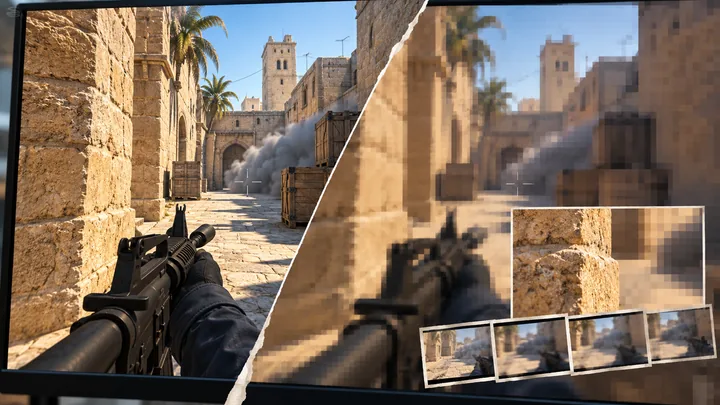
CSTV · Blog
How to record CS2: live capture, demos, or automatic highlights?
Choose a CS2 recording workflow for your footage. Compare live capture with Steam, NVIDIA App, and OBS against recording a match demo after the game.
Updated · CSTV
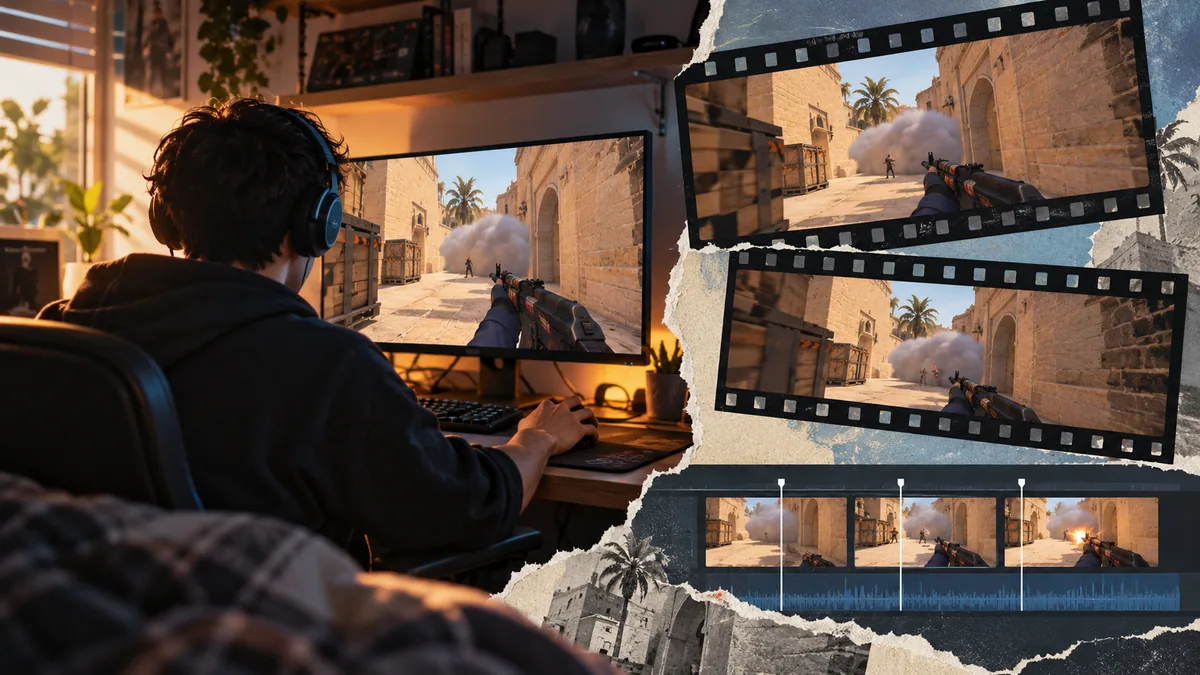
Live capture preserves what was on your screen
Set up recording before a match if you need your screen, microphone, or custom audio mix. A recording tool cannot recover footage it was never capturing.
Steam Game Recording
This is an option for players who want to manage gameplay recordings in Steam. Configure background or on-demand recording using the official instructions, then test game audio and the saved file.
GPU capture and OBS
NVIDIA App offers capture on supported hardware. OBS lets you configure scenes, picture sources, and audio. Test one setup at a time and check its audio tracks before a full match.
- In Steam, open Settings → Game Recording and choose background or on-demand recording.
- Set the save location, audio sources and shortcuts, then record a short test before a match.
- Keep a permanent clip from the test and verify its game sound and microphone; temporary background recordings can be overwritten.
Look for a demo if you missed the recording
Check the provider where you played for a downloadable replay. A demo is match data, so it needs to be rendered through CS2 and captured before you can share a video.
Demos let you choose players and rounds afterward, but they do not guarantee your entire original screen or every audio source. Missing, expired, incomplete, or incompatible demos may not work.
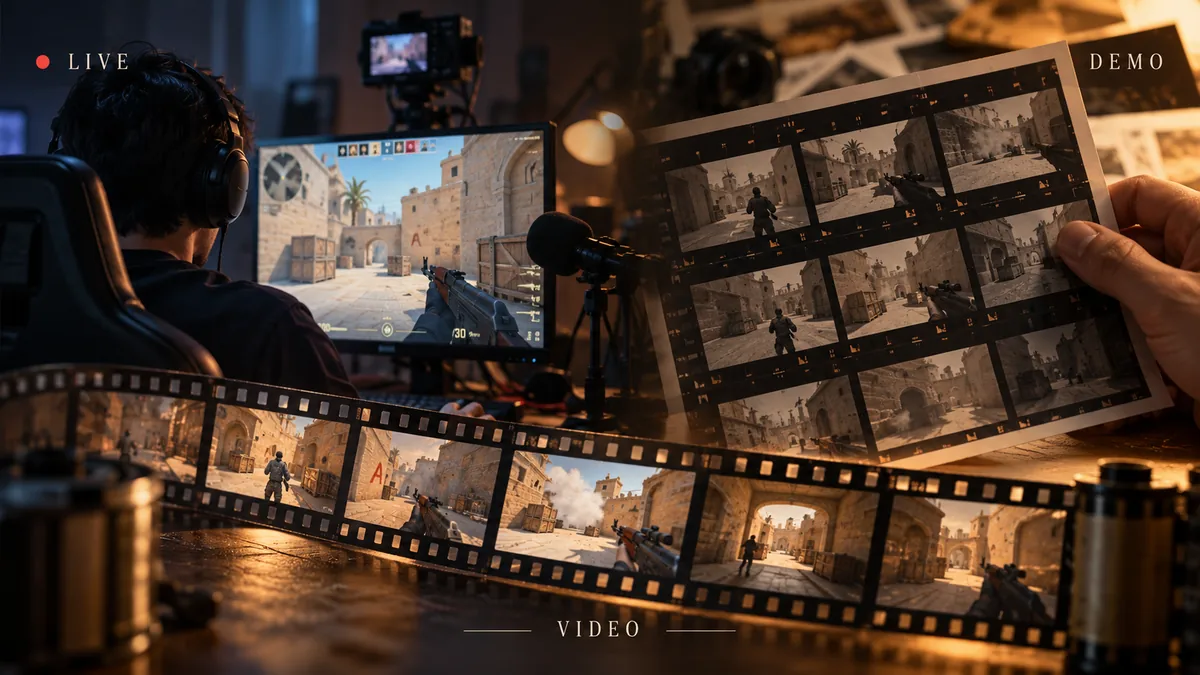
Automatic highlights organize selection and capture
CSTV is for players with a playable demo who want multikills, clutches, weapon montages, or death replays. Select events and let the queue record through CS2 and assemble the result on your PC.
Live recording and demo capture can complement each other. CSTV cannot recreate a replay when you have neither a demo nor recorded footage.
Test a short clip before a full match
Check the picture, game audio, microphone or team voice, output location, disk space, and playback in a regular media player.
Test one capture setup at a time. Compare the same clip for picture quality, dropped frames, sound sync, and file size. No single setup can promise zero performance impact on every PC.
Common questions
Is a demo the same as a gameplay recording?
No. A recording contains captured picture and sound. A demo is match data that the game must render before it becomes a video.
What if I forgot to record?
Look for a playable demo through the match provider. With neither a demo nor a recording, you cannot recover the complete match footage.
Which recorder has the best picture?
Quality depends on the source, resolution, frame rate, encoding, and upload compression. Compare the same short clip on your PC instead of assuming the highest settings are best.