CSTV · Guides
How to download CS2 demos and import match replays
Find a CS2 demo through your match provider, check the downloaded file, and import it into CSTV. Includes local folders for Perfect World and 5E matches.
Updated · CSTV
Download the replay from the provider where you played
For Perfect World Arena, open Data, then Match history, choose the correct match, and use Download Demo in its details. After downloading, the detail view offers a local demo path and a replay button. Check the map and match time before choosing a file.
A match record alone is not a playable demo. If the replay is expired, unavailable, or restricted, the provider must resolve that. CSTV imports local files and cannot recover a replay removed by the provider.
Find Perfect World Arena's downloaded file
On the Windows machine checked on October 20, 2026, Perfect World Arena stores downloaded demos in the folder below. Paste it into File Explorer's address bar and press Enter. APPDATA expands to your current Windows user's roaming folder; do not copy someone else's username.
Look for the recently downloaded .dem or archive. If the folder is empty, check the Local demo path button in the match detail view: your saved location may differ. Extract an archive to a new folder if you need to open it directly in CS2; changing its extension is not extraction.
%APPDATA%\Wmpvp\demo- Open the downloaded match's details and choose the local demo path.
- In File Explorer, turn on View → Show → File name extensions so an archive and a .dem are easy to distinguish.
- Keep the original download. If it is an archive, extract it and locate the complete .dem file.
- In CSTV, use the sidebar + button to import that file, or choose its folder under Settings → Match imports.
Find 5E or CS2 downloads without guessing a drive
For 5E, start from the completed download in the provider's match history and use its open-folder action if available. If a browser downloaded the file, press Ctrl+J and use Show in folder. Otherwise, search the folders you use for downloads for .dem files and sort by Date modified. For archives, inspect the newest download and extract it first.
There was no logged-in 5E installation available for this check, so this guide does not claim a universal 5E folder or a verified current button layout. Perfect World's Wmpvp folder must not be used as a 5E default.
To find your CS2 installation, use Steam Library → Counter-Strike 2 → Properties → Installed Files → Browse. Check game\csgo\replays for downloaded replays. A manually downloaded file can be elsewhere; playdemo also accepts a quoted absolute path, so you do not have to move every demo into the game folder.
Import one file before connecting a whole folder
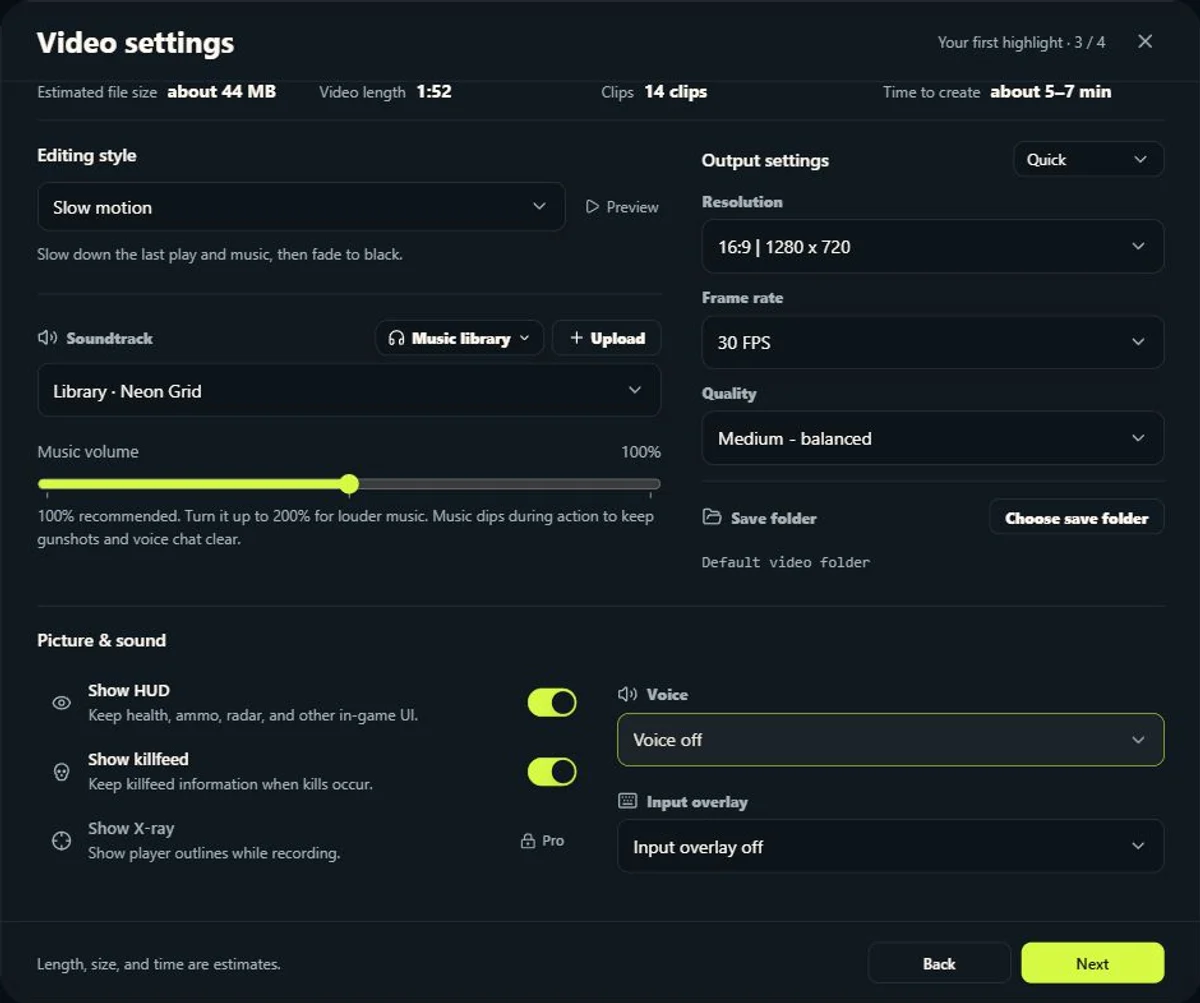
After import, confirm the map, date, and player in the Demo workspace. A pending-generation label means analysis is ready; it does not mean a video has already been created. Use Create highlights to choose clips and output settings.
If direct import works but automatic import does not, revisit Settings → Match imports and select the folder that actually contains the demos. While CSTV runs it checks connected folders about once per minute; an unfinished or unchanged download may be skipped. Avoid repeatedly moving the source files while they are still downloading.
Common questions
Does CSTV download every past Perfect World or 5E match?
No. Download through the match provider first, then connect the local folder or import the file. Historical replay availability depends on the provider.
Where are my CS2 demos saved?
The checked Perfect World default is %APPDATA%\Wmpvp\demo; the match's local demo path is the better source if settings changed. Do not use that folder as a 5E default. Use 5E's download location or the browser's download history.
Why is the downloaded replay not an MP4?
A demo is replay data. It must be played through CS2 and recorded to become a video for a regular media player.