CSTV · Guides
Fix black frames, missing audio, and stuck CS2 recordings
Troubleshoot CS2 demo capture by checking the file, game compatibility, capture environment, output folder, and voice data before retrying a failed task.
Updated · CSTV
Match the symptom to a checkable result
Keep the original download and the first error. Work down this table until you find the first failing stage; changing output quality cannot fix an incomplete archive or a missing input file.
| Symptom | Next action | Expected result |
|---|---|---|
| Download incomplete / archive will not extract | Wait for the provider's download to finish. Try extracting to a new folder. If extraction reports missing or corrupt data, re-download once from the original provider. | An extracted .dem exists and its size stops changing. |
| CS2 cannot find or open the demo | Enable file extensions, copy the actual .dem path, and keep quotation marks around it in playdemo. | The requested match loads; an archive renamed .dem will still fail. |
| Old demo opens incorrectly after a game update | Try a recent demo in the same CS2 installation, keeping both original files. | If the recent file plays, investigate old-file compatibility before changing recording settings. |
| CSTV imports the match but recording never starts | Open Settings → Game and components. Check detected CS2 and recording components, then confirm CS2 starts normally on its own. | The game opens and a short selected clip reaches recording. |
| Recording works but final assembly fails | Check free space and write access in the chosen output folder. Keep the failed job's logs and avoid deleting its diagnostic files. | A short export is written and opens in a regular player. |
The recording is black or the task stops
Check that CS2 starts on its own and that other capture or overlay tools are not interfering. Follow the app's component checks.
A real CSTV v0.0.24 regression involved exits in different clips during long captures, with the same audio-device release path in both logs. After the fix, the source completed all 16 clips and a full decoded export. One failed old demo alone is not enough evidence to blame a new CS2 update; update CSTV and keep logs if the issue repeats.
- Keep the error message and note whether CS2 is still running.
- Check output folder access and free space, including disconnected or moved folders.
- Remove capture conflicts and try one short clip at a lower resolution and frame rate.
- If it still fails, note the stage and keep debug logs from around the failure time.
Check player POV and voice in a short replay
First-person and free-camera views answer different questions. Choose the player and round before checking sound; a free-camera shot is not what that player originally saw.
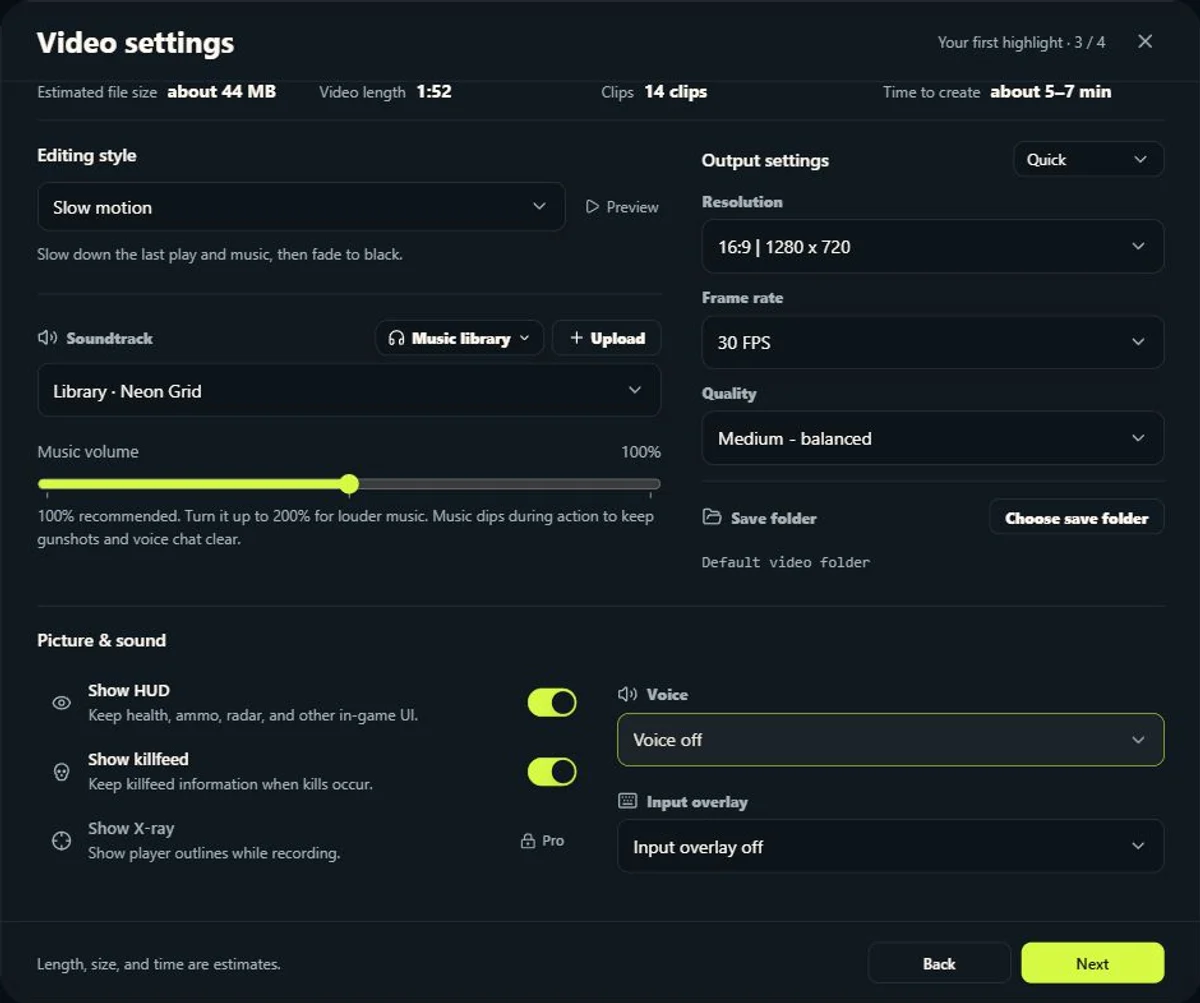
Listen for game effects first. If shots and footsteps work but voices do not, check the voice track rather than the entire audio system. In CSTV, open Settings → Video content and choose Team voice or Both teams. Both teams is a Pro option; unavailable source audio cannot be restored by a paid plan.
For a manual CS2 replay that contains voice data, these two demo-listening commands are the same mask controls used by CSTV's recording setup. They enable available voice slots; they do not recover missing voice data or external Discord calls. Use them after the replay has loaded, keep a note of your original values, and restore them afterward.
tv_listen_voice_indices -1
tv_listen_voice_indices_h -1| Situation | What to check | What it tells you |
|---|---|---|
| Perfect World or 5E demo | Load the same file and jump to a round where you remember talking. Check replay mute controls, then record a short test with voice enabled. | A provider's match page alone does not prove that this file contains both teams' voice. |
| Valve matchmaking demo | Check the file's available audio before promising a voice export. | Treat availability as a property of the actual demo, not a guarantee of every matchmaking replay. |
| Game sound but no talking | Compare voice-off, team-voice and available both-teams settings on the same moment. | This separates voice selection from missing game audio. |
| No sound anywhere | Check the media player's mute state, the Windows volume mixer, and a second player. | If only one player is silent, changing demo voice masks is not the right fix. |
Send useful information to support
Include the CSTV and Windows versions, GPU model, demo source and date, failed task stage, error screenshot, and relevant debug logs. Say whether import failed, CS2 would not start, or the video has sound without picture.
Use the support page or WeChat support. Review screenshots and logs for private details before sending, and never share account passwords, payment passwords, or verification codes.
Common questions
Will higher quality fix black frames?
Check replay compatibility, capture, and output access first. A short clip at lower settings is a better starting point for finding the cause.
Why does an old demo stop working after an update?
Game updates can affect replay compatibility. Check the file and game version; CSTV cannot guarantee that every historical demo works with the current game.
Which logs should I send?
Send logs from around the failure time with the app version, demo source, and task stage. Check them for private information first.