CSTV · Guides
How to create automatic CS2 highlights from match demos
Make CS2 highlight clips without recording during the match. Import a demo into CSTV, choose your kills and clutches, and export a video on your Windows PC.
Updated · CSTV
A match demo and a screen recording do different jobs
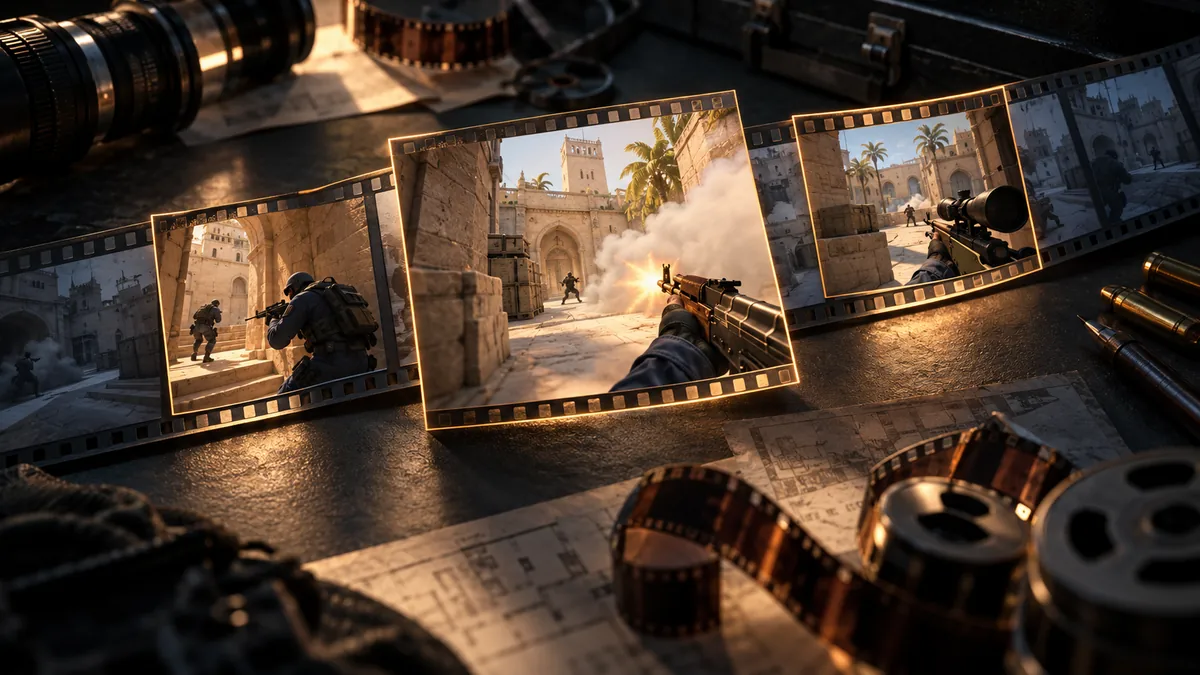
A screen recording preserves what was on your screen. A demo contains match replay data, letting you choose a player, round, and POV afterward. CSTV needs a playable demo; it cannot reconstruct a match from a scoreboard alone.
Install CS2 on a Windows PC and check that it starts normally. Game updates and incomplete files can affect demo playback, so keep the original file while you check a new import.
Create your first highlight
Start with one short clip from a recent match before recording a full montage.
- Download the complete demo and import it, or connect a supported platform folder.
- Wait for analysis, confirm your player, and select kills, multikills, headshots, or clutches.
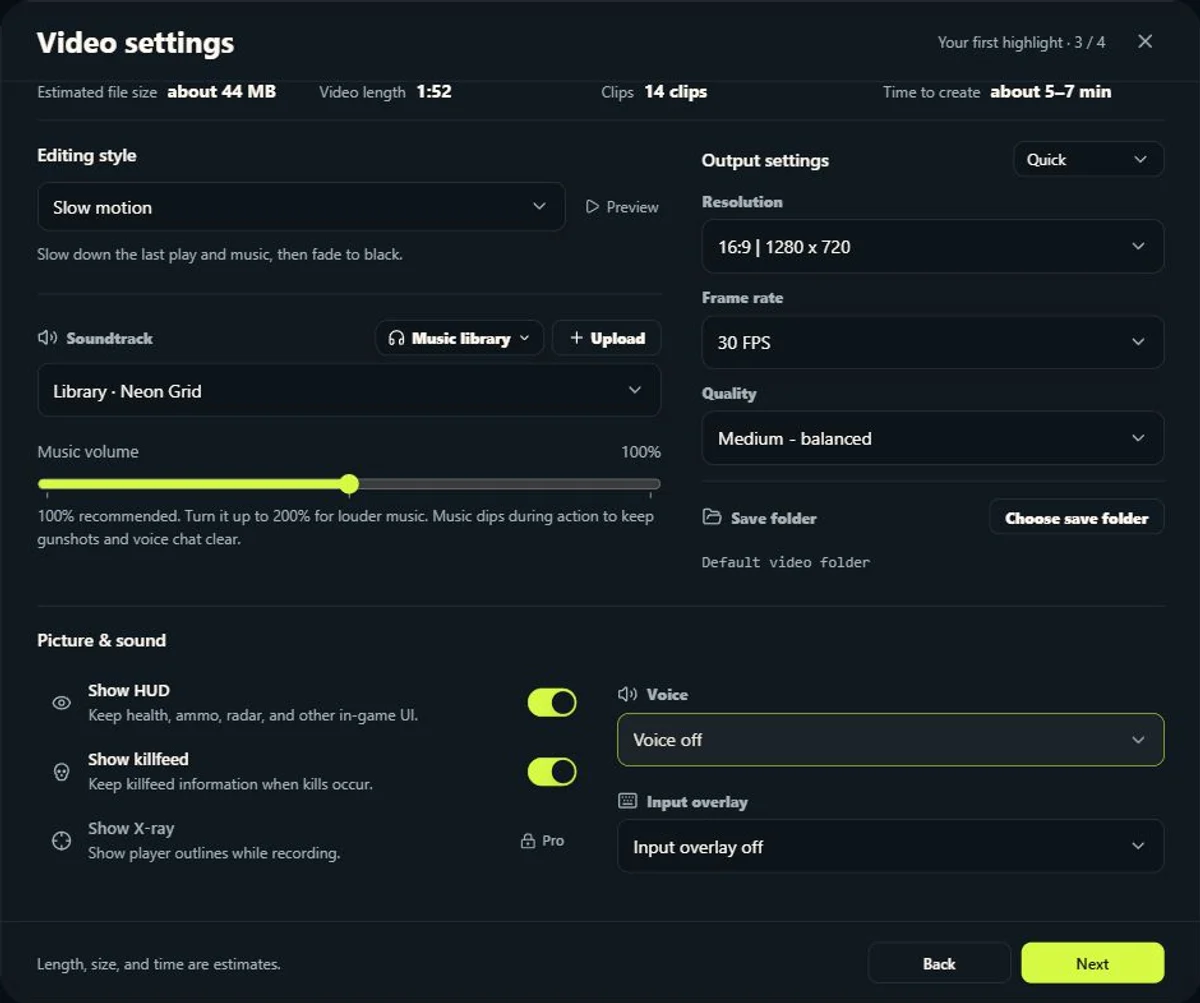
- Choose the available video quality, frame rate, POV, HUD, and voice options for your plan.
- Start the task. CSTV launches CS2, records the clips, and assembles the video. Do not force CS2 to close during recording.
- Preview the result in your library, check the sound and clip boundaries, and save it before sharing.
Pick clips that tell the story
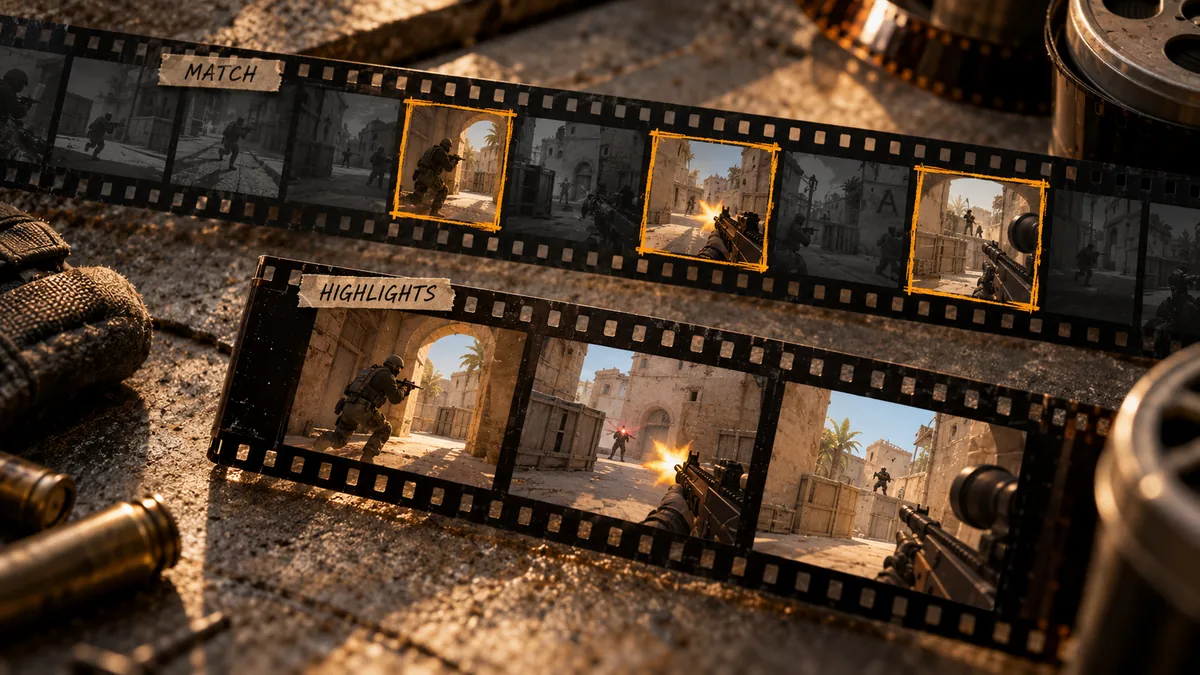
A personal highlight reel can cover your best rounds, while a weapon montage keeps a consistent theme. Include enough setup for a clutch to make sense instead of cutting directly to every elimination.
Before uploading to a social platform, check the complete export, aspect ratio, text placement, and music permissions. Platforms may recompress the video.
Try a short export before raising quality
The current free tier includes 3 videos at 720p and 30 fps, with your own kill POV and a CSTV watermark. Paid plan options are listed on the pricing page; watermark-free exports are included in Creator.
Higher resolutions and frame rates use more recording time, encoding resources, and disk space. Choose settings that suit your PC and where you plan to share the video.
Common questions
Can I create highlights if I was not recording?
Yes, if you can get a playable match demo and have CS2 installed on Windows. A match listing without a demo is not enough.
Are demos uploaded to a cloud service?
CSTV analyzes, records, and assembles demos on your PC. Sign-in, plan checks, and updates still need an internet connection.
Does CSTV publish clips automatically?
This workflow saves the video on your PC. Review it and upload it to the platform of your choice yourself.