CSTV · Guides
CSTV will not open? Fix a blank or frozen window
For CSTV 0.0.46 and later: learn about automatic repair, one desktop shortcut, saved startup choices, mode tradeoffs, and external diagnostics.
Updated · CSTV
Update, then open CSTV normally
Automatic repair and the single desktop shortcut apply to 0.0.46 and later. A blank window after sign-in can also be a UI code issue: version 0.0.45 fixed a control error on older WebView2 runtimes (the component that displays the app). Switching rendering modes cannot replace that update.
This page covers a blank or frozen app window. If CSTV works but an exported video has black frames, use the recording troubleshooting guide.
New installations use standard mode. Existing users normally keep their last successful choice. For certain native rendering failures during startup, CSTV tries compatibility mode once and skips the repeated intro. Use the same shortcut next time.
Slow networks, sign-in failures, and ordinary script errors are not automatically treated as graphics failures. Automatic repair retries once, then stops and offers diagnostics if it still fails.
- Download the latest installer and install over your existing copy without uninstalling. Your account, settings, videos and clips stay saved.
- Open CSTV normally. If automatic recovery is needed, wait for the app to reopen; no manual switching is required.
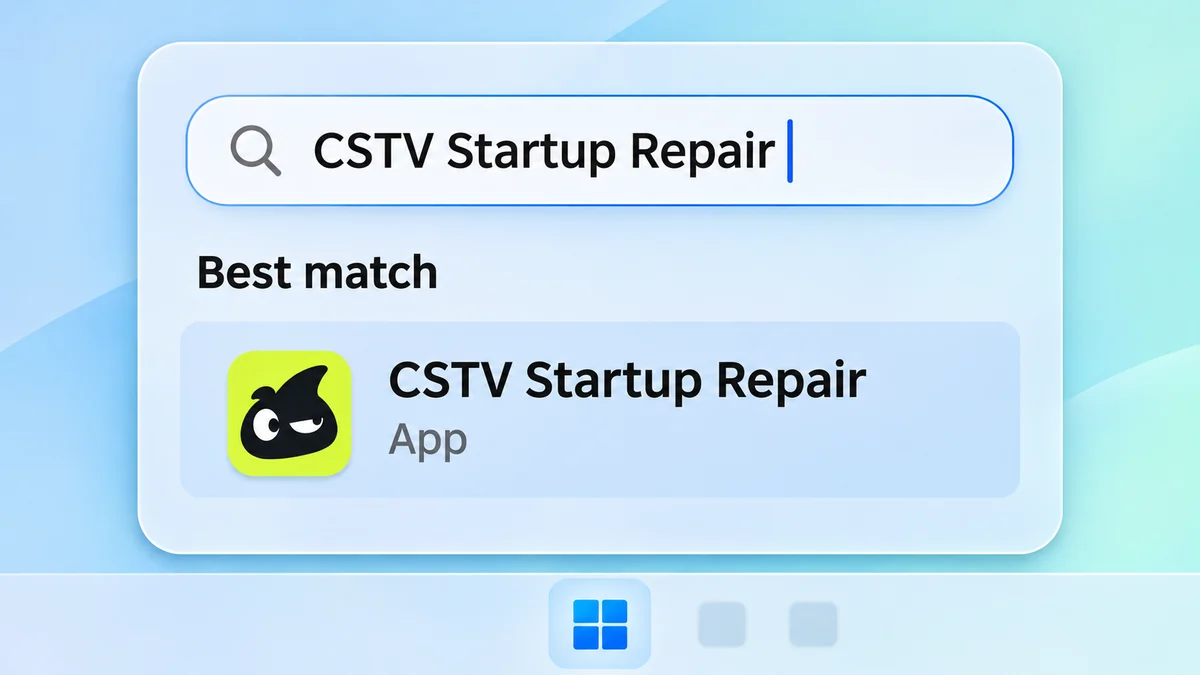
- If the window stays blank, press the Windows key and search for CSTV Startup Repair. You do not need to close the blank window or edit launch arguments.
Does the error appear only after opening help or an editing menu?
Update to CSTV 0.0.47 or later. Some older WebView2 runtimes lack the popup interfaces used by help panels and menus. Opening platform Demo folder help, filters, or editing options could show an interface error. Version 0.0.47 adds compatible controls; repeatedly changing startup modes does not resolve this type of error.
If CSTV still responds, update in the app. If an older version incorrectly reports that recording or queue work is blocking an update, close the update window and open Settings → Recording setup → View update. Keep failed tasks and clips. Finish or pause work that is actually running and wait for file operations to finish. If the interface cannot be used at all, the full installer can restore it while keeping your account, videos, clips, and settings.
If the error continues, note the CSTV version, time, and button you clicked. Keep the local diagnostic file and contact support. Platform authorization failures, network errors, and black frames in exported videos need separate checks.
Standard and compatibility mode: benefits and tradeoffs
Hardware acceleration (letting the graphics processor help draw the interface) is used by standard mode. Software rendering (having the CPU, your main processor, do more of that drawing) is the recovery path tried by compatibility mode. This changes the CSTV interface; it does not install a second app.
Choose whichever works better on your PC. Keep the default standard mode when the window and previews work normally. Try compatibility mode when standard mode produces a blank or incorrectly drawn window. Neither mode is guaranteed to solve every problem on every PC.
| What changes | Standard mode | Compatibility mode |
|---|---|---|
| Interface rendering | Hardware acceleration: the graphics processor helps draw the interface. | Software rendering: the CPU handles more interface drawing. |
| Main benefit | Uses the graphics processor to share interface work when the graphics environment is functioning normally. | Tries to bypass parts of the graphics-rendering path that may be causing a blank or incorrectly drawn window. |
| Possible tradeoff | A graphics or interface-component failure can still produce a blank, stuck, or closed window. | CPU usage may rise. Animations and previews may be less smooth, and a busy PC may respond or make videos more slowly. |
| Recording and export | Keeps your existing CS2, capture, encoder, and quality settings. | Does not force changes to CS2, recording, encoding, or export-quality settings. |
| Plan and features | Uses the features available to your account. | The same account and features; this is not a separate paid tier. |
| Installation space | Uses one CSTV installation. | Uses that same installation and user data, without installing a second copy. |
What happens to the CPU, GPU, and exported video?
CPU usage (how busy your main processor is) can increase in compatibility mode because more interface and preview work moves to the CPU. This does not disable your PC’s graphics card or force CS2 and FFmpeg (the tool that processes and encodes video) to use only the CPU.
Encoder settings (how recorded frames are compressed and saved), resolution, and frame-rate options are not rewritten by the startup mode. This does not guarantee identical preview smoothness or production speed: the PC has finite resources, and extra interface work can affect other tasks.
If compatibility mode opens the app but previews are slower, keep your existing videos and clips. Test one short recording and export, then consider restoring standard mode as described below. Switching startup modes does not require deleting saved settings or videos.
One shortcut can remember either mode
A shortcut (the icon used to open the app) is different from a rendering mode (how the app draws its interface). The normal CSTV icon uses your last successful choice; it does not force standard mode on every launch.
If compatibility mode already works, an update normally keeps it. Only clear local evidence of the fixed legacy UI error, without graphics-failure evidence, permits one standard-mode test. The signed-in home screen must be stable before standard mode is saved; a failed test falls back.
Interface health and saving your choice are separate. If disk space or permissions prevent saving, CSTV tells you instead of treating a working window as a startup failure or claiming the choice was remembered.
Switch to compatibility mode, or back to standard
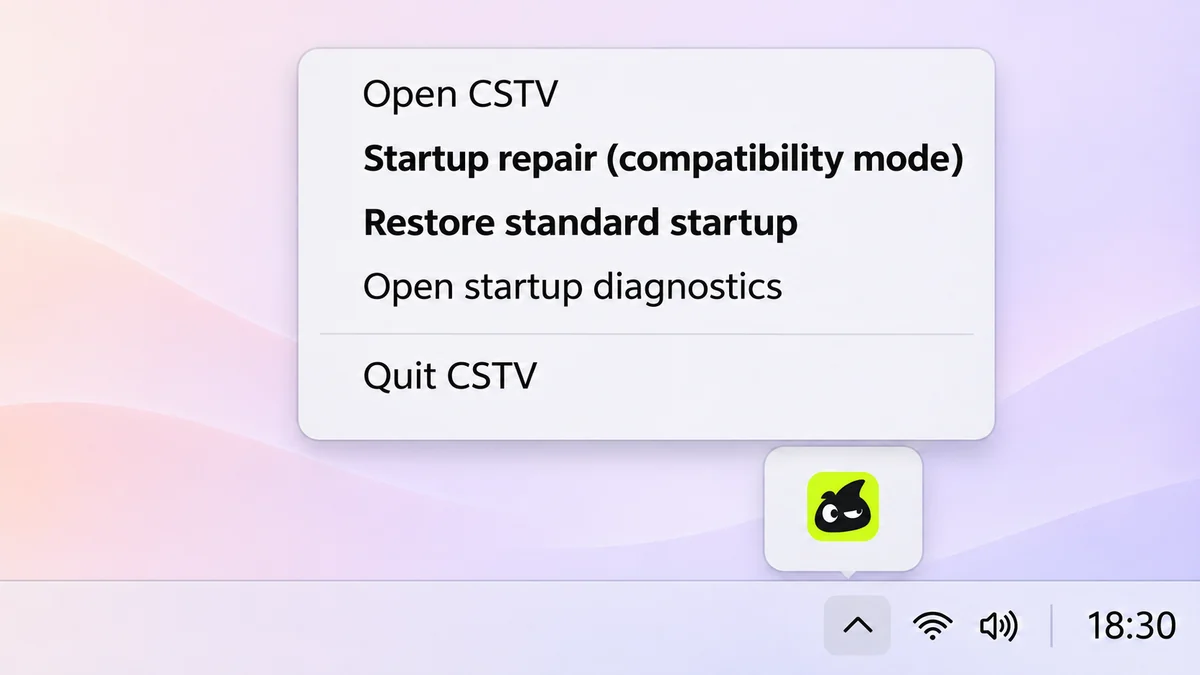
Both directions are available in the system tray (the icon area beside the Windows clock; expand hidden icons if needed). Right-click CSTV; a second installation is not needed. The illustration enlarges the real menu commands, while Windows styling may vary.
Let active work finish before switching
CSTV blocks the restart request during recording, encoding, or protected file operations and asks you to try later. Do not force-terminate the process (kill the app in Task Manager) to switch modes.
- Find the CSTV icon beside the clock and right-click it. Expand the hidden-icons arrow if necessary.
- To switch from standard to compatibility mode, choose Startup repair (compatibility mode).
- To switch from compatibility back to standard, choose Restore standard startup.
- Wait while CSTV checks active work and reopens. It saves the new choice after the interface is healthy; restoring standard from a saved compatibility choice waits for the signed-in home screen. Recognized rendering failures during standard startup can trigger one compatibility recovery.
Old or deleted shortcuts do not need a second installation
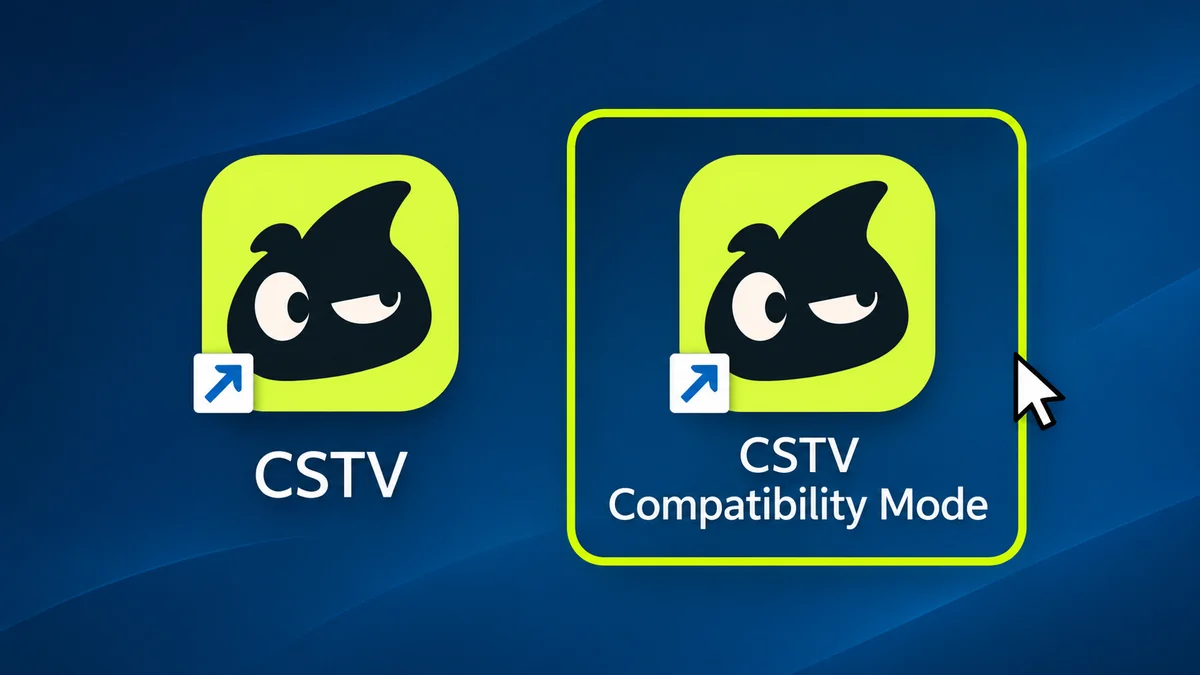
Versions 0.0.44 and 0.0.45 created CSTV and CSTV Compatibility Mode desktop entries. Updating migrates shortcuts owned by the installer and normally leaves one desktop entry. Your saved choice is independent of the number of icons.
Customized shortcuts and unrelated apps with the same names are preserved. Users who opted out of desktop shortcuts are not forced to create one.
Deleting a desktop shortcut does not uninstall CSTV or clear data. The external repair entry (a way to request repair without using the app window) is in the Windows Start menu and opens the same app.
- Press the Windows key and search for CSTV Startup Repair. It forwards repair requests to the running CSTV instance, so you do not need to close a blank window manually.
- If the Start-menu entries were also deleted, run the latest installer again to restore them without uninstalling first.
- Recording, export and file operations block a restart. Finish or pause active work and let any file operation finish; do not force-terminate the app.
Does compatibility mode use more disk space?
Compatibility mode uses the same installation, without a second app copy or duplicated clips. Downloading and installing an update still requires normal installation space.
Startup settings are small. Startup diagnostics (local records of startup stages) rotate between two files of about 512 KiB each, about 1 MiB combined. They are not uploaded automatically. Other app caches are separate.
Switching startup modes does not change membership or clear your account, videos, clips or recording settings. A blank window does not mean your membership was canceled; sign-in and entitlement issues need separate investigation.
If neither mode opens the app, contact support
If both modes fail, stop repeating repair or uninstalling. Network, sign-in, component and loading failures need separate investigation. A blank window alone cannot prove that Windows 10, Windows 11 or the graphics card is unsupported.
If the dialog says Microsoft Edge WebView2 Runtime is unavailable (the system component that displays this app), download CSTV again from the official website and install over your existing copy to repair it. No uninstall is needed. Compatibility mode cannot replace a missing runtime.
Choose Open diagnostics folder on the error page, in the native recovery dialog or from the tray menu. Send startup.jsonl and startup.previous.jsonl, if present, from the diagnostics folder to support, plus an error-page screenshot. Do not open or edit the files. Logs record Windows and the loaded WebView2 version separately, omit sign-in tokens, raw exception text and account contents, and are not uploaded automatically.
Sources: [1] Microsoft Learn — WebView2 process-related events
Common questions
Must I uninstall first or close the blank window?
Usually no. Install the latest version over your existing copy. Starting with 0.0.46, open CSTV Startup Repair from the Start menu without closing the blank window; active work blocks the restart.
Why not reset everyone to standard mode after an update?
Old choices cannot distinguish a UI code issue from a graphics failure. A forced reset could break a working setup, so successful choices are preserved unless there is clear evidence for a one-time standard test.
Is compatibility mode for Windows 10 and standard mode for Windows 11?
No. There are not two app versions assigned by operating system. A fresh installation starts in standard mode. Choose based on whether the app works on your PC; Windows 11 is not a guarantee against every blank-window problem.
Is this the same as the Compatibility tab in Windows file properties?
This guide describes CSTV’s built-in startup modes, which change interface rendering. Use the CSTV desktop, Start-menu, or tray controls. You do not need to edit Windows file properties or launch arguments.
Official references
- Microsoft Learn — WebView2 process-related events
Explains browser, renderer, and GPU process failures. Blank windows have different causes; startup repair cannot resolve every failure. This guide includes the control compatibility fixes in CSTV 0.0.47.